How to create a WhatsApp account, step by step
Install WhatsApp from the App Store or Google Play, enter your phone number in international format, and type in the six-digit code that arrives by SMS. Add a name and photo and the account exists. The whole thing takes about three minutes, and the two settings worth changing before you do anything else are two-step verification and who can add you to groups.

Key takeaways
- The phone number is the account. There is no username, no password and no email signup.
- Turn on two-step verification immediately — it takes forty seconds and blocks the main account-theft attack.
- Set 'who can add me to groups' to My contacts before your number appears in a 200-person room.
- Restoring from a backup only works during setup. Skip it and the offer does not come back.
What you need first
- A phone number that can receive an SMS or an automated voice call. A landline works; see using WhatsApp without a mobile number.
- An internet connection, from Wi-Fi or mobile data.
- A phone running a currently supported version of iOS or Android. Very old devices are refused outright.
- If you are moving from an old phone, a completed backup on it — restore is only offered during setup.
The setup, step by step
Creating the account
- Install from the official storeThe App Store on iPhone, Google Play on Android. Only from the official store — cloned WhatsApp builds carrying malware are a genuine problem, particularly on Android, and a modified client will also get the account banned.
- Agree to the terms and enter your numberChoose your country from the list, which fills in the country code, then type the number without its leading zero. A UK mobile written 07700 900123 is entered as 7700 900123 under +44.
- Wait for the six-digit codeIt usually arrives within seconds. On many Android phones it is detected and filled automatically. If nothing comes, wait for the countdown and choose 'Call me' — an automated voice reads the digits aloud.
- Restore from backup, if you are offered itiPhone reads iCloud, Android reads Google Drive. This offer appears once. Decline it and the only way back is to delete and reinstall the app, which is worth knowing before you tap.
- Enter a name and, optionally, a photoThis is your profile name, and it is what strangers in groups see. Up to 25 characters. Changing it later is easy — see how to change your WhatsApp name.
- Allow or decline contact accessAllowing it matches your phone book against WhatsApp's users so your contacts appear automatically. Declining works, but you then add people one at a time by number.
The four settings to change before anything else
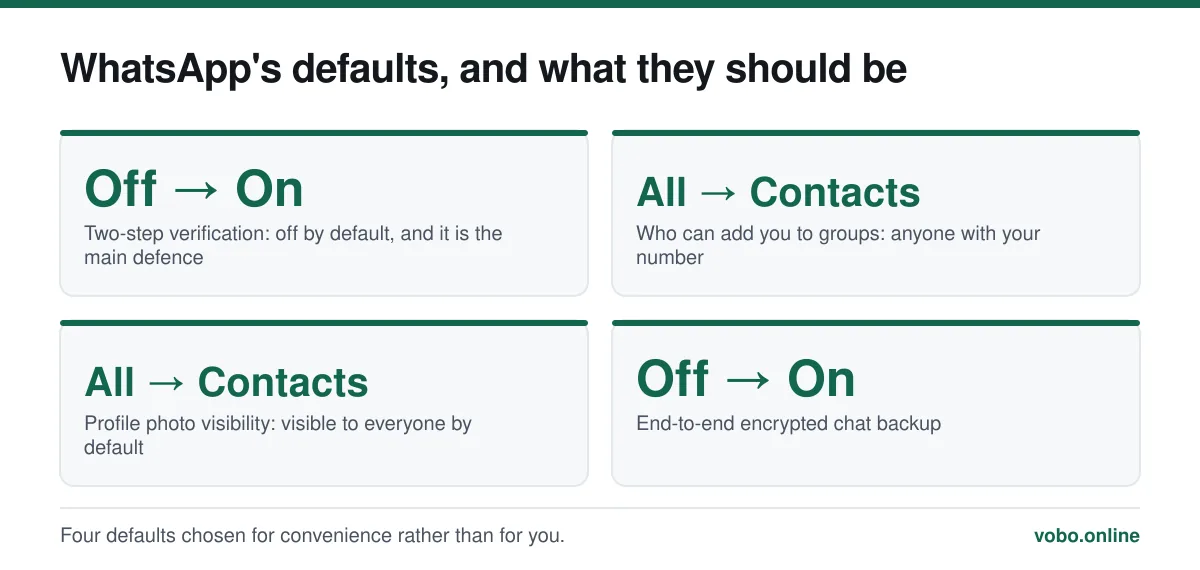
WhatsApp's defaults are tuned for frictionless setup rather than for privacy. Four minutes here saves a great deal later.
The first-run privacy and security pass
- Turn on two-step verificationSettings → Account → Two-step verification. Choose a six-digit PIN and add a recovery email. This is the single most valuable thing on this page: it blocks the code-forwarding attack completely.
- Set who can add you to groupsSettings → Privacy → Groups → My contacts. Otherwise any stranger with your number can drop you into a group where two hundred people can read it.
- Restrict your profile photo and AboutSettings → Privacy. Both default to Everyone, meaning anyone holding your number can see your face. My contacts is the sensible default.
- Turn on encrypted backupsSettings → Chats → Chat backup → End-to-end encrypted backup. Without it, the backup is protected only by your Apple or Google account password.
Moving from an old phone
The order matters and getting it wrong loses chats.
- On the old phone, run a manual backup: Settings → Chats → Chat backup → Back up now. Wait for it to finish rather than assuming.
- Install WhatsApp on the new phone and verify the same number.
- Accept the restore offer when it appears. Restoring a large history over Wi-Fi can take a while; leave it plugged in.
- Only once everything has arrived, remove WhatsApp from the old phone.
Moving between iPhone and Android is the awkward case, because iCloud and Google Drive backups are not interchangeable. WhatsApp does provide a cross-platform transfer that runs over a direct connection between the two phones, and it must be done during setup on the new device rather than afterwards.
A second account
One number is one account. To run two — a personal and a work identity — you need two numbers, and there are three ways to hold both on one phone.
| Method | How it works | Needs |
|---|---|---|
| Multi-account | Built into recent WhatsApp; switch between numbers in-app | A second number and a recent app version |
| WhatsApp Business | A separate free app alongside the standard one | A second number |
| Two devices | An account on each phone | A second number and a second handset |
In every case the constraint is the same: a second number that can receive a code. Why that is unavoidable is explained in does WhatsApp need a phone number.
When setup fails
- No code arriving — check the number, including that the leading zero was dropped. Then wait for the countdown and use the voice-call option, which succeeds where SMS often does not.
- 'Too many attempts' — a rate limit from requesting codes repeatedly. It lasts a few hours and cannot be shortened.
- The number is already registered elsewhere — registering it here moves the account to this device and logs out the other one. That is expected behaviour, not an error.
- The app will not install — usually an unsupported operating system version. See why WhatsApp is not working.
Frequently asked questions
Do I need an email address to create a WhatsApp account?
No. Registration is by phone number only. An email address can be added afterwards as a recovery route for your two-step verification PIN, and it is used for nothing else.
Can I create a WhatsApp account without a phone?
You need a number that can receive a code, but not necessarily a mobile. A landline works using the voice-call option, and the account can then run on a tablet or a Wi-Fi-only device.
How long does it take to set up WhatsApp?
About three minutes for a new account. Restoring a large chat history from a backup takes considerably longer and depends on the size of the backup and your connection speed.
What happens to my old account if I register on a new phone?
Registering the same number on a new device moves the account there and logs the old device out immediately. Registering a different number creates a separate account and leaves the old one intact on the old phone.
Sources
- How to register a phone number — WhatsApp Help CenterSupports: The registration sequence, the international number format, and the automated voice-call alternative to SMS.
- About backing up your chat history — WhatsApp Help CenterSupports: That restore is offered during setup only, and that iCloud and Google Drive backups are platform-specific.
- How to use two-step verification — WhatsApp Help CenterSupports: The PIN and recovery-email setup recommended immediately after registration.
Related reading

Setup and account
What the WhatsApp 6-digit code is, and why nobody should ever ask you for it
The 6-digit code is WhatsApp's registration key for your phone number. Here is what it does, why it arrives unasked, and what to do when it never turns up.

Setup and account
Does WhatsApp need a phone number? Yes, and here is why it is built that way
WhatsApp requires a phone number that can receive a code — there is no email or username signup. Here is what qualifies, what does not, and why.

Features explained
How WhatsApp works, from registration to read receipts
A complete plain-language guide to operating WhatsApp: setting up, sending messages, the tick system, calls, groups, backups and linked devices.
Setup and account
How to change your name on WhatsApp, and who actually sees it
Changing your WhatsApp name takes four taps, but only some people ever see it. Here are the steps and which name each person is shown.