How to update WhatsApp on iPhone and Android
On iPhone, open the App Store, tap your profile picture, find WhatsApp in the list and tap Update. On Android, open Google Play, tap your profile picture, choose Manage apps and device, then Update. If no Update button appears, you already have the newest version your phone's operating system can run — which on an old phone may be a version WhatsApp has stopped supporting.
Key takeaways
- Updates come from the App Store or Google Play only. WhatsApp does not update itself.
- Turn on automatic updates once and the problem goes away permanently.
- No Update button usually means you are current — or that your OS is too old for a newer build.
- Never install WhatsApp from an APK site. Modified clients get accounts banned and carry malware.
Updating on iPhone
iOS, step by step
- Open the App StoreThe blue icon with the white A. Not Settings — updates do not live there on iOS.
- Tap your profile pictureTop right. This opens the account screen with your pending updates.
- Scroll to 'Available Updates'Pull down to refresh the list if WhatsApp is not shown; the list caches for a while.
- Tap Update beside WhatsAppOr 'Update All'. You may be asked for your Apple ID password or Face ID.
- If there is no Update buttonYou are on the newest version available for your device. Check Settings → General → Software Update — an older iOS caps which app versions you can install.
Updating on Android
Android, step by step
- Open the Google Play StoreThe multicoloured triangle icon.
- Tap your profile pictureTop right, then choose 'Manage apps & device'.
- Open 'Updates available'Under the Manage tab. If WhatsApp is listed, tap Update beside it.
- Or search for WhatsApp directlySearch, open the WhatsApp listing, and the button will read Update if one is pending, or Open if you are current.
- If Play does not offer itCheck Settings → About phone → Android version. WhatsApp requires a reasonably current Android release, and Play will not offer builds your OS cannot run.
Turning on automatic updates
This is the version of this article you only need to read once.
| Platform | Path | Note |
|---|---|---|
| iPhone | Settings → App Store → App Updates | Also set 'Automatic Downloads' if you want them on cellular |
| Android | Play Store → profile → Settings → Network preferences → Auto-update apps | Choose 'Over Wi-Fi only' to protect a data allowance |
| Per app on Android | The app's Play listing → three-dot menu → Enable auto update | Useful if you want WhatsApp updated but not everything else |
Why updating matters more here than for most apps
Two reasons, and the second is the one that catches people out.
- Security fixes. WhatsApp handles messages from strangers, which is exactly the surface where vulnerabilities matter — see can WhatsApp be hacked — and patches arrive through app updates rather than any in-app mechanism.
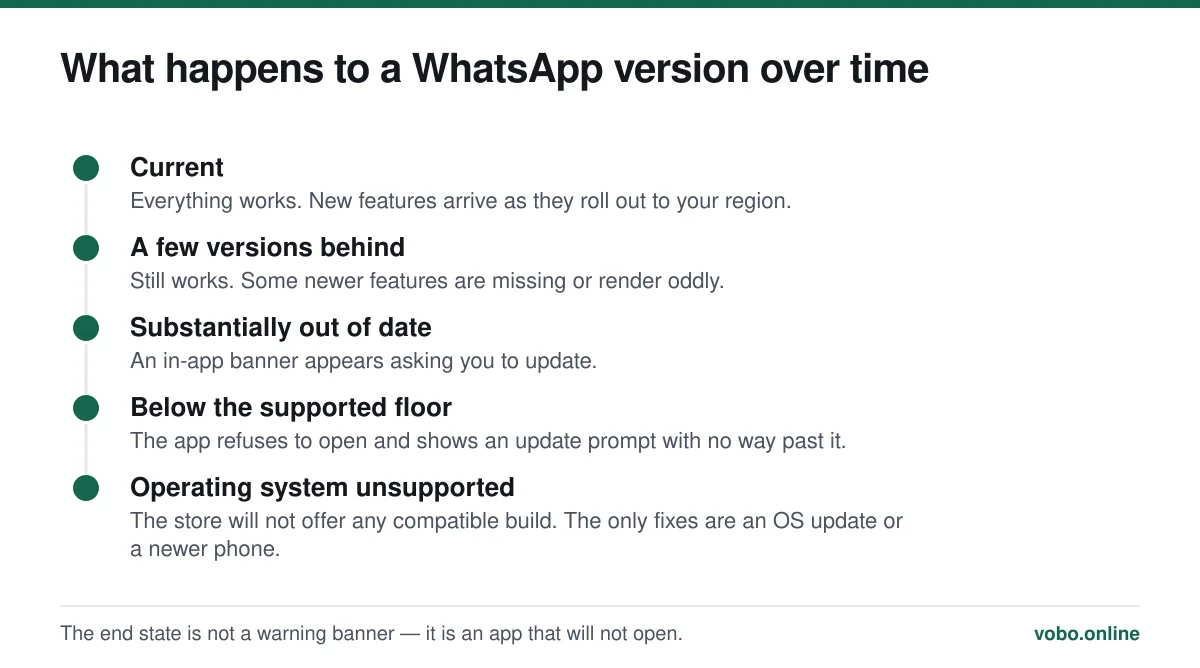
- Forced obsolescence. WhatsApp disables very old client versions outright. When that happens the app does not degrade — it stops working entirely and tells you to update, which is a problem if the update is not available for your phone.
When the update will not install
- Not enough storage. An update needs free space to unpack. Clear a gigabyte and try again — inside WhatsApp, Settings → Storage and data → Manage storage shows which chats are hoarding video.
- The operating system is too old. The store simply will not offer a build your OS cannot run, usually without explaining why. Check for an OS update first.
- Store account problems. Sign out of the App Store or Play Store and back in. Payment-method warnings can block free updates on some accounts, which makes no sense but does happen.
- A stalled download. On Android, clearing the Play Store cache under Settings → Apps → Google Play Store → Storage resolves most stuck updates.
- Restricted network. Some corporate and school Wi-Fi blocks app-store traffic. Try mobile data, which is not the same thing as needing Wi-Fi.
If the app is failing in ways an update does not fix, work through why WhatsApp is not working, which puts these checks in order alongside the connection and permission causes.
Old phones, and the end of the road
WhatsApp periodically drops support for older operating systems, and the cut-offs move roughly annually. When your OS falls below the floor, there is no workaround — no older APK, no compatibility setting, no appeal.
Before concluding the phone is finished, check whether the operating system itself can still be updated. A phone that shipped with an old Android version may support several releases beyond it, and many people never install those.
Before a major update
Updates do not touch your chats, and in ordinary use nothing is at risk. Two habits are still worth having.
- Check your backup is current: Settings → Chats → Chat backup shows the date of the last one. If it is months old, run one.
- Update over Wi-Fi rather than mobile data. WhatsApp is a large download and it comes out of your allowance otherwise — see does WhatsApp work without Wi-Fi.
- If you use linked devices, expect the desktop app to prompt for its own update separately. They are versioned independently.
Frequently asked questions
How do I update WhatsApp on my iPhone?
Open the App Store, tap your profile picture at the top right, scroll to Available Updates and tap Update beside WhatsApp. If it is not listed, pull down to refresh; if there is still no Update button, you already have the newest version your iOS can run.
Why is there no update button for WhatsApp?
Either you are already on the current version, or your operating system is too old for a newer build. Check your OS version first — the store hides updates it cannot install rather than explaining the reason.
Will updating WhatsApp delete my messages?
No. Updating replaces the app while leaving its data in place, so chats, media and settings are untouched. It is uninstalling without a backup that loses history, not updating.
Can I update WhatsApp without the Play Store?
You should not. Sideloaded APKs are the main route by which modified WhatsApp clients spread, they carry malware, and using one is grounds for an account ban. Use Google Play or the App Store only.
Sources
- How to update WhatsApp — WhatsApp Help CenterSupports: The official update routes through the App Store and Google Play, and that WhatsApp does not update itself.
- About supported operating systems — WhatsApp Help CenterSupports: That WhatsApp stops functioning on operating systems below its supported floor, with no workaround.
Related reading
Troubleshooting
Why WhatsApp is not working, and how to fix it in order
An ordered triage for WhatsApp that will not open, connect, call or download — starting with the causes that are actually most common.
Setup and account
Can you get WhatsApp on a Samsung tablet or an iPad?
Android tablets can run WhatsApp as a linked companion device. iPad has its own app now. Here is how each works and what the limits are.

Features explained
How WhatsApp works, from registration to read receipts
A complete plain-language guide to operating WhatsApp: setting up, sending messages, the tick system, calls, groups, backups and linked devices.
Calls, data and cost
Does WhatsApp work without Wi-Fi? Yes — and here is what it costs
WhatsApp works on mobile data with no Wi-Fi at all. This explains what it needs, how much data messages and calls actually use, and what breaks offline.